

Slim Portable External USB optical CD-ROM Drive DVD Player Reader Writer Burner
Slim Portable External USB optical CD-ROM Drive DVD Player Reader Writer Burner
Couldn't load pickup availability
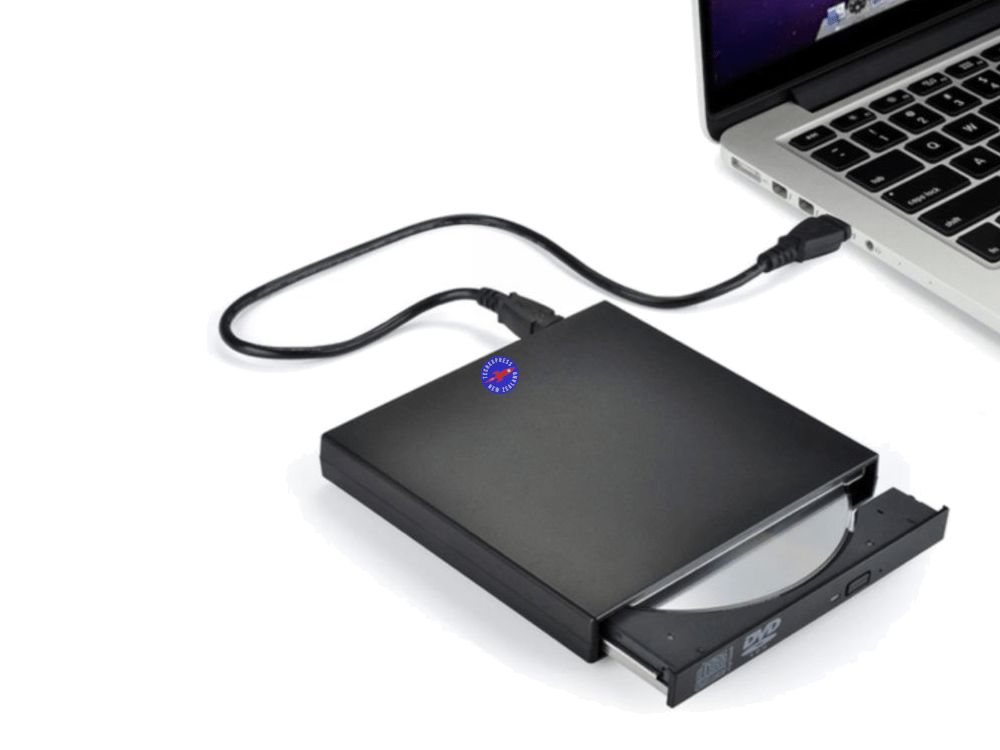
Slim Portable External USB optical CD-ROM Reader Writer Burner and DVD Player Reader Combo Drive.
This handy USB powered CD-ROM and DVD drive is a great way to watch DVD movies on a laptop, desktop or tablet computer.
The CD-RW combo SuperDrive is compatible with a wide range of Disc formats including CD-R, CD-RW, DVD + R, DVD-R, CD-ROM and of course DVD-ROM.
This USB DVD player works with Windows XP, Windows Vista, Windows 7, Windows 10, Windows 11 and Mac OS X 10.3.
USB Power supply cable included. Power can be supplied via a computer USB port or a USB wall charger (not included).
Colour: Black.
Condition: New.
Packaging: Bulk.
Product Category: Optical Drives.
Product Type: External CD DVD Drive.
Write capabilities: CD-R, CD-RW.
Read capabilities: CD-R, CD-RW, CD-ROM, DVD-RAM, DVD-ROM, DVD-R, DVD+R, DVD+RW, DVD-R DL, DVD+R DL.
Package includes:
1x USB power cable.
1x USB connection cable.
1x External USB 2.0 24X DVD CD Burner Writer Player.
Combine & Save. See our range of cables, parts and accessories.
People also search for: external CD DVD drive NZ, USB DVD drive writer NZ, portable CD drive NZ, laptop DVD burner NZ, external disc drive NZ, CD writer for laptop NZ, DVD reader NZ, USB optical drive NZ, external drive for CD and DVD NZ, External CD Drive.
Warranty & Returns:
1 Year return to base refund or replace guarantee.
FAQ (Frequently Asked Questions and Answers):
Q. Can I play CDs and DVDs on this? Yes, this USB CD/DVD Reader & Writer allows you to play both CDs and DVDs on your computer. Simply connect it via USB, and you can enjoy music, movies, or access files from your discs. This external drive is also capable of burning (writing) CDs and DVDs, making it a versatile solution for backing up data, creating music CDs, or recording video content.
- Ensure that the portable CD reader is connected directly to the computer. Do not use a USB HUB or USB extension cable.
- Ensure that both the power supply cable and the data signal cable are connected to an operational USB port.
- Ensure that, after the USB DVD Drive connected, a full restart of the host computer is performed.
- Typically, the computer will recognize the external drive and automatically install the drivers for the device.
- Run the Hardware and Devices troubleshooter. Windows has a built-in troubleshooter that can help you fix problems with hardware devices. To run the troubleshooter, go to Start > Settings > System > Troubleshoot > Hardware and Devices.
- Try using a different USB port. Sometimes, a USB port can be faulty. Try using a different USB port on your computer.
- Check the disc. Make sure that the disc you are trying to use is not dirty or damaged. Try using a different disc.
- Check the disc Region or Zone. There is many resources about this on the Internet. An example Google Search.
- If you cannot write disks and receive the error message 'FOCUS SERVO FAILURE', try a different brand or type of disk.
- Error Code 43. Windows error Code 43 can occur for many reasons. Link to common error Code 43 fixes (Link opens in a new window): www.google.com/search?q=error+code+43+windows+10+usb
- To write or burn a CD or DVD Burning software is required.
- To play old CD based games on a modern PC, try DOSBox. DOSBox is a free and open-source emulator that allows you to run DOS games on modern operating systems. You can download DOSBox from the DOSBox website: https://www.dosbox.com/
- To watch a DVD movie you will require DVD Player software. There are many options for this. One option is VLC media player. VLC is a free and open source cross-platform multimedia player and framework that plays most multimedia files as well as DVDs, Audio CDs, VCDs, and various streaming protocols. See https://www.videolan.org/vlc/index.html
1. Google Search: "CD/DVD drive keeps ejecting" OR "DVD drive ejects automatically" OR "USB CD/DVD drive not working".
2. Microsoft Community: MY dvd/cd-rom drive keeps ejecting: A discussion on potential causes and solutions for DVD/CD-ROM drives that continuously eject discs. https://answers.microsoft.com/en-us/windows/forum/all/my-dvdcd-rom-drive-keeps-ejecting/0c299fb2-b3f9-412b-aa9b-dde284dd424a
3. Super User: Windows 10 ejects every CD/DVD I put into the drive: A forum thread discussing issues with Windows 10 automatically ejecting discs and possible troubleshooting steps. https://superuser.com/questions/1106876/windows-10-ejects-every-cd-dvd-i-put-into-the-drive
We welcome & answer all questions.

Product questions & answers
Understand how this product works and whether it suits your setup.